TdmsSlice Documentation
From TDMS file to the CSV range you need.
TdmsSlice follows a focused workflow: open a TDMS file, inspect its structure, select one Channel, preview supported data, choose a sample range, and export that range to CSV.
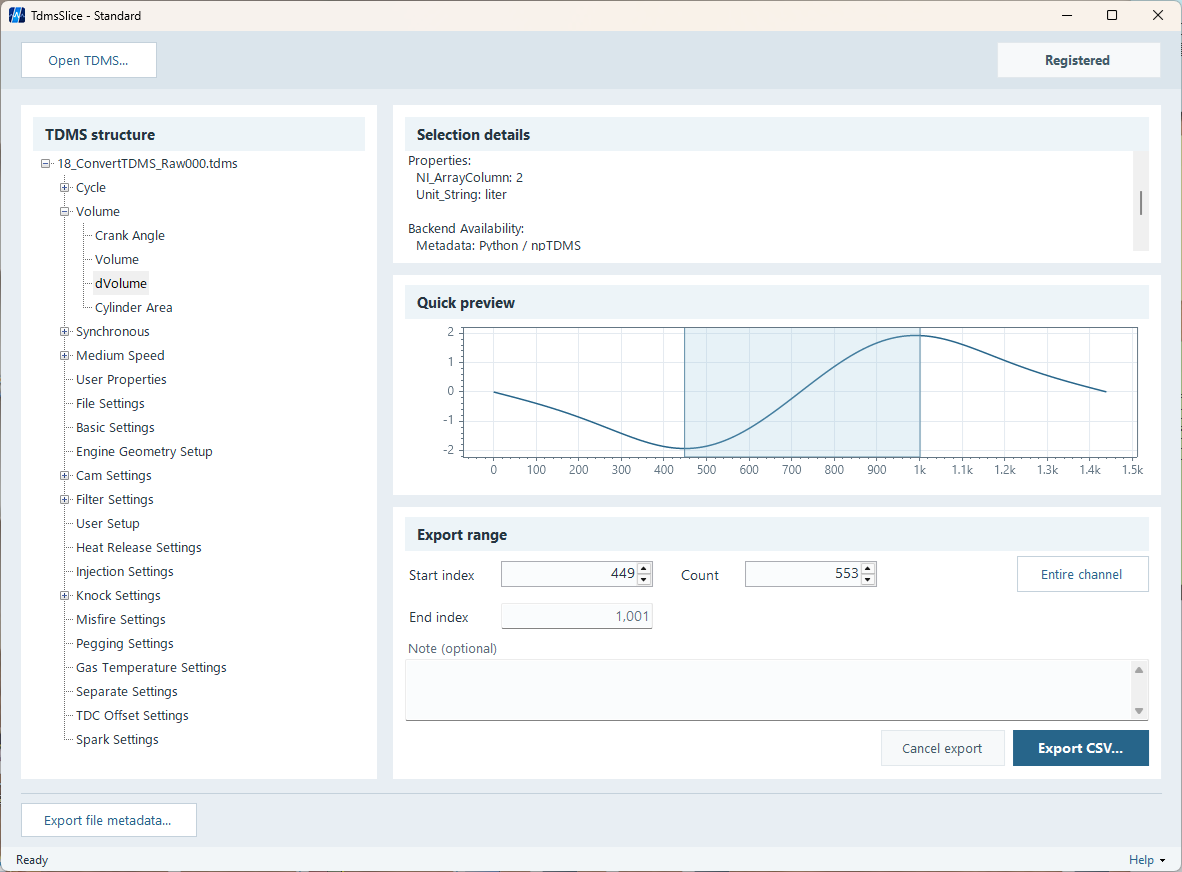
The basic workflow
The main window is organized around one path rather than separate analysis modes. You can move from file inspection to a selected CSV export without modifying the source TDMS file.
- 1 Open TDMS...
Choose the TDMS file you want to inspect. TdmsSlice reads the file and builds the Group / Channel tree and metadata view.
- 2 Select a Channel
Choose one Channel from the TDMS structure. Selection details show the data type, sample count, properties, and availability of Preview and CSV operations.
- 3 Quick Preview
For supported data types, use the preview to get an overview of the Channel and help locate the range you need.
- 4 Set Start index and Count
Enter the first sample index and the number of samples to export. End index is calculated from those values.
- 5 Export CSV...
Choose the output location. TdmsSlice writes the selected Channel range to CSV and creates companion metadata JSON.
Open a TDMS file
Select Open TDMS... and choose a source file. After a
successful read, the left side of the main window shows the file,
Groups, and Channels.
TdmsSlice reads the source for inspection and export. It does not rewrite or modify the original TDMS file.
TdmsSlice is distributed as a portable ZIP for the initial release. The required .NET and app-local Python components are included; a separate Python or .NET installation is not required.
Select a Channel
Expand the TDMS structure and select the Channel you want to inspect or export. The Selection details area shows information such as DataType, SampleCount, Channel properties, and whether Quick Preview and CSV export are available for that Channel.
Availability is decided per Channel. A file may contain both supported and unsupported Channels without making every Channel in the file unusable.
Use Quick Preview
For supported data types, Quick Preview gives you a fast overview of the selected Channel. Its main purpose is to help you understand the data shape and find the approximate sample range you want to export.
Quick Preview is not intended to replace full-sample analysis. After locating the area of interest, use the export range controls to select the exact sample interval you need.
Choose the export range
The Export range area uses the original Channel sample index.
- Start index
- The first sample index to export.
- Count
- The number of samples to export.
- End index
- A read-only value calculated from Start index and Count.
- Entire channel
- Sets the range to the full selected Channel.
You may also enter a User Note before export. The note belongs to the export metadata and is kept separate from the original TDMS properties.
Evaluation lets you set a larger range, but CSV export is limited to 100 samples per export. Standard removes that Evaluation sample limit.
Export CSV
Select Export CSV..., choose the destination, and let
TdmsSlice write the selected Channel range. The original sample
index is kept in the CSV.
When valid waveform timing information is available, the CSV may also include relative time or absolute UTC time. Raw Timestamp and Complex Channels have their own defined CSV representations.
The selected Channel values and the applicable index / time columns.
Source, Group / Channel, data type, selected range, timing information, and export context.
CSV export and its companion metadata JSON are a pair: the CSV is convenient for analysis and sharing, while the JSON preserves context that is easy to lose when data leaves TDMS.
Export file metadata
Export file metadata... is separate from Channel CSV
export. It writes a metadata summary JSON for the loaded TDMS file
without exporting raw sample values.
Use it when you want to inspect or share the file structure and metadata without creating a Channel CSV.
Register Standard
After purchasing Standard, use
Register Standard... in TdmsSlice and select the
supplied Standard license file. License validation is performed locally.
- 1 Receive the Standard license file
The purchase instructions will identify the file to use.
- 2 Select Register Standard...
Choose the supplied license file from the registration dialog.
- 3 Continue in Standard
After successful local validation, TdmsSlice switches to Standard without requiring recurring online validation for normal use.
Save a diagnostic report
If TdmsSlice reports an error or the result looks unexpected, use
Save diagnostic report... to create a diagnostic JSON
that can be attached to a bug report.
The report is designed to capture technical context such as the selected Group / Channel, metadata summary, the last operation, and error information. It does not include the raw Channel sample values or the full source-file path.
Review the JSON if your TDMS metadata may contain confidential or proprietary names or properties.